Migrating a Website to a New Cloud Server
A single-site move is a well-understood procedure. Following it in order is what turns a stressful evening into a quiet one.
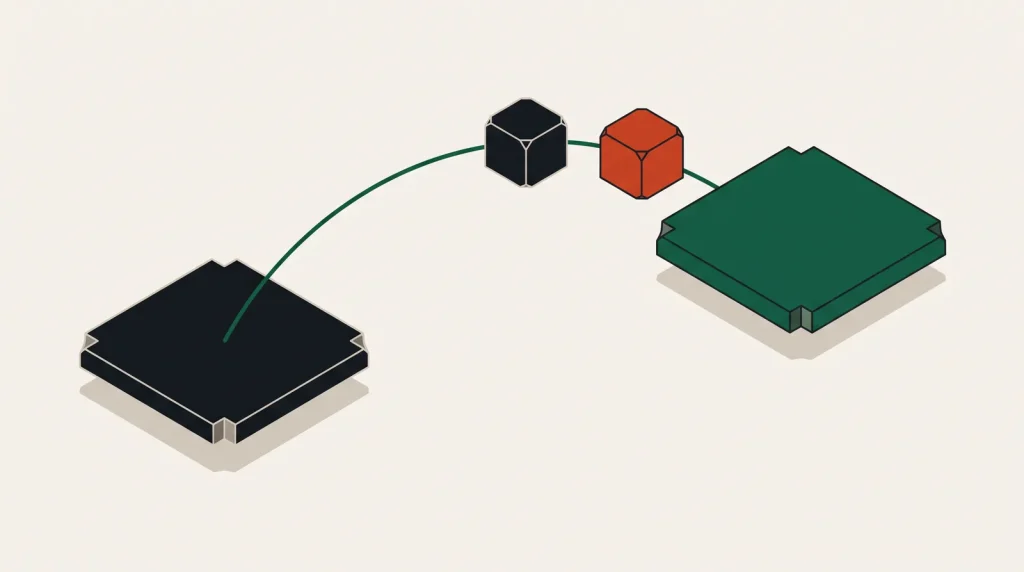
Moving a website between servers is routine work with a well-defined order. The failures come from doing steps out of sequence — most commonly, switching DNS before verifying the new server actually works.
Before you touch anything
- Take a full backup of files and database, and copy it somewhere off both servers.
- Record the current software versions: web server, language runtime, database engine, extensions.
- List every cron job on the old server.
- List every certificate and its expiry.
- Note any IP allow-lists on external services that reference the old address.
- Note the current DNS TTL and lower it to 300 seconds now, at least 48 hours before cutover.
- Write down what “working” looks like — the pages and functions you will check afterwards.
The IP allow-list item catches people regularly. Payment gateways, mail relays and partner APIs often restrict by source address, and the new server has a new one.
Build the new server
- Match the software versions from the old server, or upgrade deliberately as a separate, tested change.
- Configure the server fully — firewall, users, key-only SSH, automatic security updates.
- Install and configure the web server and runtime.
- Create the database and user with the same names, to avoid configuration changes.
- Set up the reverse proxy and obtain certificates using a temporary hostname or DNS validation.
- Configure backups on the new server before it holds production data.
Do not combine a version upgrade with a server move. If something breaks you will not know which change caused it.
Move the data
- Sync files with
rsync— an initial pass while the site is live, then a final pass at cutover. - Export the database with the engine’s own dump tool, not by copying files.
- Import and verify: row counts on the main tables, and a few spot checks.
- Copy configuration files, environment files and secrets separately and securely.
- Recreate cron jobs, and confirm the paths and users match.
- Copy any uploads directory in full; it is frequently the largest and most easily missed part.
The two-pass rsync approach means the final sync at cutover moves only recent changes, which takes seconds rather than hours.
Test before DNS
This is the step that makes the difference. Point your own machine at the new server without changing public DNS:
- Add an entry to your local hosts file mapping the domain to the new IP address.
- Load the site and click through the important paths.
- Test forms, logins, uploads, payment flows and email sending.
- Check error logs for anything that appears only under real use.
- Verify certificates, redirects and canonical URLs.
- Test on a mobile device using the same technique, or a temporary subdomain.
Everything must work here before DNS changes. After the switch, problems are visible to users.
Cutover
- Put the old site into maintenance mode, or accept a short window of divergence.
- Run the final file sync.
- Take a final database dump and import it.
- Update DNS to the new address.
- Watch traffic arrive at the new server and error logs stay quiet.
- Keep the old server running, unchanged, for at least a week.
Do not delete the old server quickly. It costs a few days of hosting and it is the only real rollback you have.
Afterwards
- Raise the DNS TTL back to a normal value once traffic has settled.
- Verify backups are running on the new server and restore one to confirm.
- Check certificate auto-renewal actually works, ideally by forcing a renewal.
- Confirm every cron job has run at least once on its normal schedule.
- Check outbound email deliverability — SPF and DKIM records may reference the old server.
- Monitor for a week before decommissioning the old environment.
Email is the most commonly broken thing after a server move, because SPF records naming the old IP address silently start failing.
Common questions
How much downtime should I expect?
With this procedure, seconds to a few minutes — the final database sync. Running both in parallel with a read-only window can reduce it to effectively zero.
What if something breaks after DNS changes?
Change DNS back. With a 300-second TTL most users return to the old server within minutes, which is exactly why the old server stays running.
Can I migrate without downtime?
For read-heavy sites, yes — set up replication, promote the new database, then switch. For sites accepting writes throughout, a brief window is much simpler and usually acceptable.
Should I upgrade software at the same time?
No. Move first on identical versions, verify, then upgrade as a separate change with its own rollback.
Where to go next
See the first hour on a new cloud server and planning a cloud migration.
Read next
Database Migration Strategies
The database is the hardest part of any migration, because it is the only part where a mistake loses something you…
Multi-Cloud: When It Makes Sense and When It Is a Tax
Using two providers is sometimes obviously right and often just twice the operational surface for no benefit.
Moving Off a Cloud Provider Without Drama
Leaving is harder than arriving, mostly because of things that accumulated quietly: managed services, egress and…